View Mode
Toggle View Mode
Toggle View Mode can be done by clicking the button on the top right of the screen or by using the keyboard shortcut.
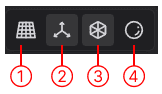
| Function | Shorcut | Button | Command Name |
|---|---|---|---|
| Toggle orthographic camera | Num. 5 | (1) | Viewport: toggle orthographic camera |
| Toggle overlay display (This will switch the grid display on and off.) | Alt + Shift + Z | (2) | Viewport: toggle overlays |
| Toggle X-Ray mode (This will make hidden lines visible and selectable.) | Alt + Z | (3) | Viewport: toggle xray mode |
| Toggle Render mode (When switched on, Render mode will reflect the material settings.) | (4) |
Select View Mode
When Render mode is off, select the display mode by right-clicking the button (4) and choosing from the thumbnails.
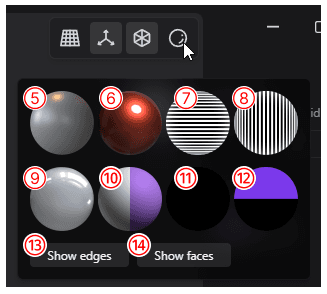
- (5) Default
- (6) Red, glossy
- (7) Checking surface continuity, horizontal
- (8) Checking surface continuity, vertical
- (9) Checking highlights
- (10) Matte
- (11) Checking silhouettes
- (12) No shadows
Toggle Show Edges and Faces
Toggle show Edges and Faces can be done by right-clicking the button (4) and choosing from the thumbnails.
| Function | Shorcut | Button | Command Name |
|---|---|---|---|
| Toggle show Edges (Turning this off will hide the Edges.) | (13) | viewport: toggle Edges | |
| Toggle show Faces (Turning this off will hide the Faces.) | (14) | viewport: toggle Faces |